Designing a Zero-Trust Corporate Network: MDM Automation and Segmented Unifi Wireless for Modern Startups
Introduction
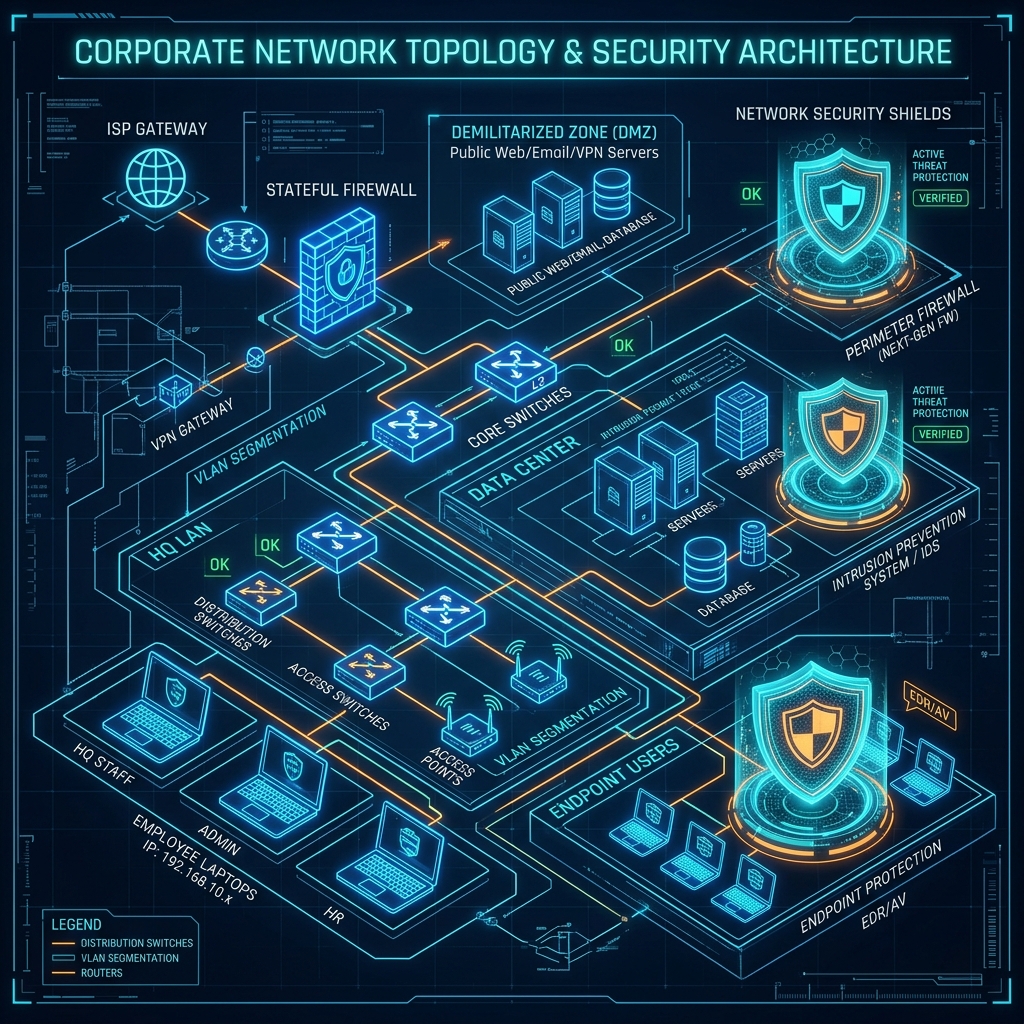
The traditional corporate network design relied on the "castle-and-moat" security model: once a device was inside the physical office and connected to the corporate LAN, it was fully trusted and granted access to internal resources. In the age of remote work, cloud infrastructure, and sophisticated phishing attacks, this perimeter-based model is obsolete.
Startups need a modern Zero-Trust Network Architecture (ZTNA). The central premise of zero-trust is simple: never trust, always verify. Regardless of whether a device is in the office, at a coffee shop, or at home, its access must be explicitly authenticated, authorized, and encrypted. In this article, we outline a pragmatic, production-grade zero-trust corporate network architecture built on UniFi network equipment and Mobile Device Management (MDM) automation.
Network Segmentation: Designing the UniFi Topology
A zero-trust network starts with physical and logical segregation. In a startup office, you cannot allow unknown devices (like employee personal phones or client smart-home speakers) to reside on the same broadcast domain as your production servers or developer machines.
We enforce this using Virtual Local Area Networks (VLANs) terminated on a UniFi Dream Machine (UDM Pro or SE) and managed switches.
Here is a standard network segmentation matrix for a modern startup:
+---------+---------------+---------------+---------------------------------------+
| VLAN ID | Subnet Name   | Target DHCP   | Isolation & Firewall Access           |
+---------+---------------+---------------+---------------------------------------+
| VLAN 10 | Corporate-LAN | 10.10.10.0/24 | MDM-managed corporate laptops only.    |
|         |               |               | Access to local servers & Internet.   |
+---------+---------------+---------------+---------------------------------------+
| VLAN 20 | Guest-WiFi    | 10.10.20.0/24 | Visitors. Complete isolation.         |
|         |               |               | Internet-only access.                 |
+---------+---------------+---------------+---------------------------------------+
| VLAN 30 | IoT-Devices   | 10.10.30.0/24 | Smart TVs, Sonos, printers.           |
|         |               |               | Isolated. No inter-VLAN access.       |
+---------+---------------+---------------+---------------------------------------+
| VLAN 40 | Production-Mgt| 10.10.40.0/24 | Hardware management interfaces        |
|         |               |               | (Switches, APs). Bastion access only. |
+---------+---------------+---------------+---------------------------------------+
Enforcing Inter-VLAN Firewall Rules
By default, UniFi routing allows traffic between all VLANs. We must configure explicit stateful firewall rules in the LAN IN section to block unauthorized traffic:
- Allow Established/Related Sessions: Allow traffic from any source if it is in response to an already established outbound request. (Rule: Action = Accept, State = Established/Related).
- Drop Guest to Local: Block Guest Subnet (VLAN 20) from accessing any other local RFC1918 subnets. (Rule: Action = Drop, Source = VLAN 20, Destination = Port Group "RFC1918_Subnets").
- Drop IoT to Local: Block IoT Subnet (VLAN 30) from accessing other local subnets. Prevent printer or camera compromises from spreading. (Rule: Action = Drop, Source = VLAN 30, Destination = Port Group "RFC1918_Subnets").
- Drop Inter-VLAN Corporate to Management: Block direct developer access to switch and Access Point management consoles, forcing traffic through a secure VPN or bastion host.
802.1X Enterprise Wi-Fi: Removing Shared WPA2 Keys
Using a single, shared WPA2 password ("companysecret123!") for the corporate Wi-Fi is a major vulnerability. If an employee leaves the company or a password is leaked, the entire network is compromised.
Instead, we implement 802.1X Enterprise Authentication using a RADIUS server, which dynamically maps users to specific VLANs based on their credentials or device certificates.
[Corporate Laptop] ---> [UniFi AP (WPA3-Enterprise)] ---> [UniFi Switch]
                                                              |
                                                              v (RADIUS Challenge)
                                                       [RADIUS Server / JumpCloud]
                                                              |
                                                              v (VLAN Tunnel Attribute)
[Corporate Laptop] <=== Dynamic VLAN 10 Assign <============ [Approved]
For modern startups, self-hosting a RADIUS server (like FreeRADIUS) is high-maintenance. We recommend cloud identity providers (IdPs) like JumpCloud or Okta which provide managed RADIUS endpoints. The flow is as follows:
- UniFi Configuration: Create an 802.1X Profile in UniFi referencing the cloud RADIUS server IP, port (1812), and Shared Secret.
- SSID Setup: Set the SSID security to WPA3-Enterprise and select the RADIUS profile. Enable "RADIUS Assigned VLANs" so devices are pushed to their respective VLAN ID upon login.
- Client Configuration: Install a configuration profile on corporate laptops (via MDM) containing the RADIUS credentials or EAP-TLS client certificates, allowing seamless, passwordless login.
Mobile Device Management (MDM) Automation
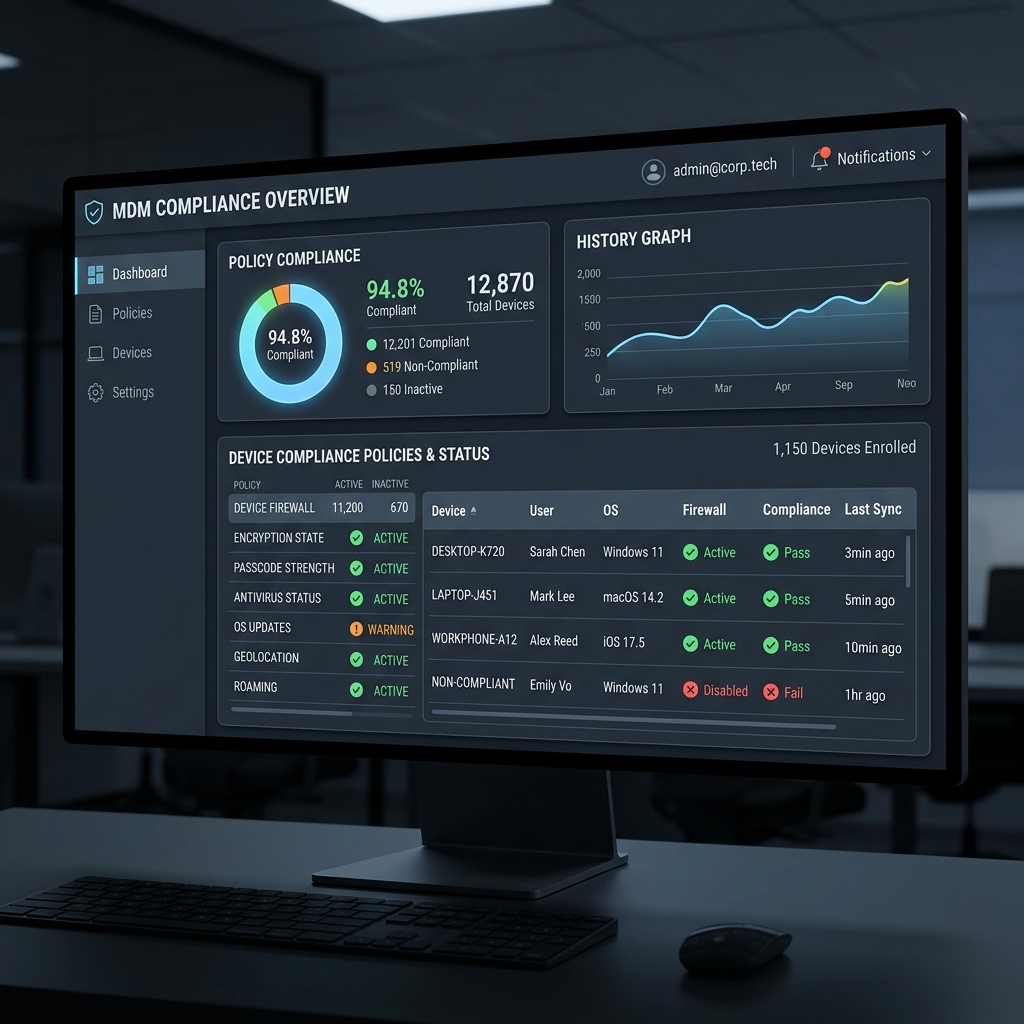
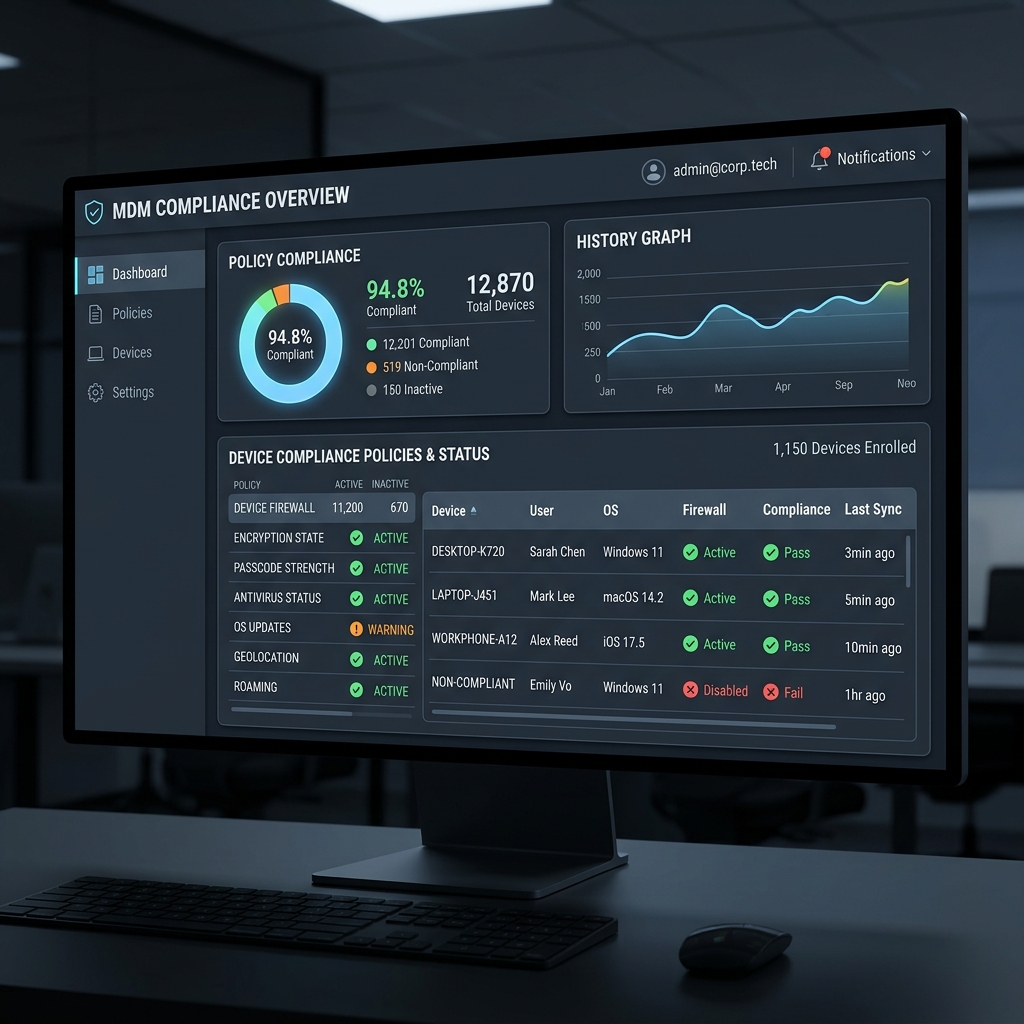
A zero-trust model requires knowing the security posture of the device requesting access. If a laptop has its firewall turned off, has outdated OS patches, or is missing encryption, it must be denied access. We automate this enforcement using Apple Business Manager (ABM) and a modern MDM provider like Kandji or Microsoft Intune.
The Automated Onboarding Flow
- Device Procurement: The startup purchases laptops directly from Apple or authorized resellers, linked to the company's Apple Business Manager ID. This registers the device serial number in the company's cloud hardware ledger.
- Automated Enrollment (DEP): When a new employee opens a shrink-wrapped MacBook, the device contacts Apple's activation servers, detects corporate ownership, and forces enrollment into Kandji before reaching the desktop environment.
- Zero-Touch Provisioning: Kandji automatically executes scripts and profiles to configure the system:
- Forces FileVault disk encryption and escrows recovery keys securely.
- Enforces OS updates and automatic patching windows.
- Deploys endpoint protection tools (e.g., SentinelOne, CrowdStrike).
- Deploys custom Wi-Fi configuration profiles containing RADIUS certificates.
- Enables the macOS built-in application firewall.
Below is a sample shell script deployed via MDM to enforce local security compliance policies:
#!/bin/bash
# Enforce local security posture for Zero-Trust integration

# 1. Enforce macOS Application Firewall
echo "Enabling Application Firewall..."
/usr/libexec/ApplicationFirewall/socketfilterfw --setglobalstate on

# 2. Enforce FileVault Encryption Status Check
fv_status=$(fdesetup status)
if [[ "$fv_status" != *"FileVault is On."* ]]; then
    echo "WARNING: FileVault is not enabled! Flagging device as non-compliant."
    # Report back to MDM console to revoke corporate VPN credentials
    exit 1
else
    echo "FileVault active. Recovery key escrowed."
fi

# 3. Disable Guest Account Access
echo "Disabling Guest logins..."
/usr/bin/defaults write /Library/Preferences/com.apple.loginwindow GuestEnabled -bool NO

exit 0
Conclusion
A zero-trust corporate network is not a single product you buy, but an architectural standard. By combining segmented UniFi VLAN topologies, WPA3 Enterprise authentication via RADIUS, and automated MDM compliance checks using Apple Business Manager and Kandji, you construct a modern, resilient environment where security scales natively with your headcount.
At D613 Labs, we help startups design, procure, and deploy these secure IT infrastructure systems. In our upcoming posts, we will walk through setting up dynamic RADIUS attribute assignment and configuring JumpCloud directory integrations.